Lab 05 - ROS 2 - Introduction, basic concepts and workspace structure
Robot Operating System 2 - Introduction, basic concepts and workspace structure

1. Activity Identity
| Activity title | Introduction to Robotics |
|---|---|
| Topic | Robotics / ROS 2 / Simulation |
| Authors | Institute of Robotics and Machine Intelligence Dominik Belter, Jakub Chudziński, Marcin Czajka, Kamil Młodzikowski |
| Target learners | Bachelor (Computer Science / IT, Robotics) |
| Estimated duration | 1.5 hours |
| Difficulty level | Beginner |
| FOSSBot environment | Simulator |
| Licence | CC BY 4.0 |
2. Learning Objectives and Competences
| ID | Learning outcome | Related competences | Assessment evidence |
|---|---|---|---|
| LO1 | Students will be able to explain the core ROS 2 graph concepts
(workspace, package, node, topic, message) and inspect a live graph with
ros2 topic, ros2 node,
ros2 interface and rqt_graph. |
Robotics middleware knowledge; gathering and interpreting information from a running system. | Screenshot of rqt_graph while the simulator is running
(Submission item 3). |
| LO2 | Students will be able to recognise the standard
build / install / log / src layout of a ROS 2 workspace,
and launch a multi-node system from a pre-existing package with
ros2 launch. |
Tool selection for working with a robot; reading and using a build system without modifying it. | Screenshot of Gazebo + RViz2 with the FOSSBot (Submission item 2). |
| LO3 | Students will be able to demonstrate the publisher/subscriber
pattern using CLI tools, by driving the robot with
teleop_twist_keyboard while observing
/cmd_vel, /odom and /scan. |
Computational thinking; sensor and actuator interfacing. | Screenshot of ros2 topic echo /odom updating while
teleop drives the robot (Submission item 4). |
3. Prerequisites
A Linux workstation with Docker installed and the current user either in the
dockergroup or withsudorights to run Docker.Network access (the lab pulls a Docker image of about 4 GB and clones a GitHub repository).
Ability to capture evidence: screenshots, logs or observation tables.
4. Required Material and Setup
| Category | Item | Version / Quantity | Notes |
|---|---|---|---|
| Hardware | Workstation | 1 per student | Linux PC with at least 8 GB RAM. An NVIDIA GPU with the
nvidia-container-toolkit is recommended so that
start_container.sh can use GPU passthrough; on a machine
without an NVIDIA GPU, use the included
start_container_no_gpus.sh instead. |
| Software | Docker Engine | 24.0 or newer | Pre-installed on the lab workstations. See Step 1. |
| Software | FOSSBotEduSim simulator | latest from main branch |
Cloned from https://github.com/LRMPUT/FOSSBotEduSim in
Step 1. The repository
ships its own Dockerfile that derives from the official
osrf/ros:jazzy-desktop-full image and pre-installs every
ROS 2 package the lab needs. |
5. Safety, Ethics and Accessibility Notes
This lab has no physical robot, so the risks are operational only:
The
start_container.shscript in Step 1 runs the container with--network=host,--pid=host,--ipc=hostand--gpus all, and grants X-server access withxhost +local:root. These flags reduce isolation in exchange for hardware-accelerated GUIs and easy network/IPC sharing between host and container. Use them only with the FOSSBotEduSim image you build yourself; do not reuse the script for arbitrary Docker images.Gazebo and RViz2 are GPU-heavy. On a workstation with integrated graphics, close other GPU applications (browsers with many tabs, video players) before launching the simulator, otherwise the window may freeze.
After the lab, revoke the X-server access that
start_container.shopened by runningxhost -local:rooton the host, especially on shared machines.
6. Scenario and Problem Statement
The Robot Operating System 2 (ROS 2) is the de-facto framework for modern robotics. Almost every robot you will work with in later labs (and most research robots in industry) exposes its sensors and actuators as ROS 2 topics, services or actions.
Before you can write code that controls a robot, you need a clear understanding of what a node is, what a topic is, how packages live inside a workspace, and how a launch file starts a whole system at once.
7. Lab Workflow
| Phase | Student action | Expected output | Time |
|---|---|---|---|
| 1. Prepare | Clone FOSSBotEduSim, build its Docker image, start the container | A container shell with ros2 on the
PATH |
20 min |
| 2. Concepts | Read through workspace, package, node, topic, message, graph | A vocabulary you can map onto the running simulator | 15 min |
| 3. Inspect the workspace | Look at the pre-built ws_fossbot workspace inside the
container |
Confirmation that the FOSSBot package is built and visible | 10 min |
| 4. Launch and inspect | Start the simulator with ros2 launch, list nodes,
topics, messages from the CLI |
A list of topics the robot publishes and their types | 20 min |
| 5. Visualize | Open rqt_graph and RViz2 |
A picture of the graph and of the lidar/camera data | 10 min |
| 6. Drive the robot | Run teleop_twist_keyboard while another terminal echoes
the topics |
Confirmation that pub/sub is happening as keys are pressed | 15 min |
| 7. Reflect | Answer the analysis questions | Short written analysis | 5 min |
8. Step-by-Step Instructions
Before you start. Capture evidence as you go. The full list of artifacts you will hand in is in Section 10. Relevant tasks below are marked with a Capture for submission note.
Step 1 - Environment preparation
You will run ROS 2 inside a Docker container built from the
Dockerfile shipped with the FOSSBotEduSim repository. That
image derives from the official osrf/ros:jazzy-desktop-full
release of ROS 2 Jazzy Jalisco and adds every package the lab
needs (Gazebo bridge, teleop, slam-toolbox, navigation2,
joint-state-publisher, and so on). The image also pre-builds the FOSSBot
workspace with colcon during image build, so by the time
you have a shell inside the container, everything is already compiled
and sourced for you.
- Clone the FOSSBotEduSim repository onto your workstation (not inside any container):
git clone https://github.com/LRMPUT/FOSSBotEduSim.git
cd FOSSBotEduSim- Build the Docker image. This wraps
docker build -t ros2_fossbot_edu .and reads theDockerfilein the current directory:
bash build_image.shTip: The first build downloads about 4 GB of base image plus another ~2 GB of ROS 2 packages, and runs
colcon buildat the end. Expect 15 to 25 minutes on a fresh workstation. Rebuilds are fast because Docker caches each layer.
- Start the container. The
start_container.shscript handles X-server access (xhost +local:root), display andXAUTHORITYpassthrough, GPU passthrough, and host networking, and drops you straight into a shell with both ROS 2 and the FOSSBot workspace already sourced through~/.bashrc:
bash start_container.shWarning: If your workstation has no NVIDIA GPU (or the
nvidia-container-toolkitis not installed), the script will fail at the--gpus allflag. Use the companion scriptbash start_container_no_gpus.shinstead; it is the same script with the GPU passthrough lines removed.
- Verify the installation from inside the container:
ros2 topic listTip: To open a second terminal attached to the same running container (you will need several of them later), run from a new host terminal:
docker exec -it ros2_fossbot_edu bashEvery shell opened this way already has both
/opt/ros/jazzy/setup.bashand the FOSSBot workspace’sinstall/setup.bashsourced from~/.bashrc. No manualsourceis needed.
Tip:
start_container.shruns the container with--rm, which means the container is destroyed the moment you exit the shell. To resume work, just runbash start_container.shagain. The workspace atws_fossbot/on the host is bind-mounted into the container, so any build artifacts or files inside it survive across sessions.
Expected result: The shell prompt is now inside the
container (it usually starts with
root@...:/fossbot_ros2/ws_fossbot#).
ros2 topic list prints two topics,
/parameter_events and /rosout, which ROS 2
always creates.
Step 2 - Basic ROS 2 concepts
This section is reference material. Skim it now, then come back to it in Step 4 when you start to see these concepts on a real running system.
What is ROS 2
ROS 2 is a set of libraries, tools and conventions for building robot software. It is not an operating system; it runs on top of Linux. Its main job is to let many small programs (called nodes) on one machine or across several machines exchange typed messages without each one having to implement its own networking code.
ROS 1 (released in 2007) was the first version and is still in use, but it was designed for research labs, not industrial deployment. ROS 2 (first stable release in 2017) was rewritten on top of the DDS standard to add real-time guarantees, security and proper multi-machine support. The version you are using in this lab is Jazzy Jalisco, the May 2024 release, which is the current long-term-support distribution.
Workspace
A ROS 2 workspace is a directory in which you build packages. A typical workspace looks like this:
ros2_ws
├── build    # compilation artifacts; only changed files are rebuilt
├── install  # the built and installed version of your packages
├── log      # logs of past builds; safe to delete to recover disk space
└── src      # source code of every package in the workspace
Source code lives in src/. The other three directories
are produced by the build tool, colcon. To
rebuild everything in the current workspace, you run
colcon build from the workspace root. To rebuild just one
package, you run
colcon build --packages-select <package_name>.
After a build, you have to tell your shell where to find the freshly built packages by sourcing the install file:
source install/setup.bashEvery time you open a new shell, you have to source the
workspace again (after sourcing
/opt/ros/jazzy/setup.bash). Forgetting this is the most
common reason a ros2 run command says it cannot find your
package. The FOSSBotEduSim container does both source lines
automatically from ~/.bashrc, so you do not need to type
them in this lab.
Package
A package is the unit of code organisation in ROS 2. It is a
directory that holds the source for one or more nodes plus a
package.xml file declaring the package’s name, version and
dependencies. A workspace’s src/ directory contains one
subdirectory per package. The FOSSBotEduSim repository you will inspect
in Step 3
contains exactly one package, named
fossbot_educational_description.
Node
A node is one running process in the ROS 2 graph. It is started with:
ros2 run <package_name> <executable_name>To see which nodes are alive right now and what each one is doing:
ros2 node list
ros2 node info /node_name
Topic
A topic is a named, typed channel between nodes. A publisher writes messages on a topic; a subscriber reads them. A topic appears the moment one publisher and/or subscriber refers to it; there is no central registry to set up in advance.
The CLI tools you will use most often are:
ros2 topic list              # all topics the graph currently knows about
ros2 topic list -t           # same, with the message type of each
ros2 topic info <topic>      # publishers, subscribers and type
ros2 topic echo <topic>      # print messages as they arrive
ros2 topic hz <topic>        # measure the publish rate
In this lab you will only ever subscribe to topics from the
CLI (with ros2 topic echo); you will not publish from the
terminal. The robot is driven by a separate program,
teleop_twist_keyboard, in Step 6.
Message
A message is a typed data structure shared between publisher
and subscriber. ROS 2 ships with hundreds of standard message types
(std_msgs, geometry_msgs,
sensor_msgs, …). You inspect a type’s fields with:
ros2 interface show <message_type>Two examples that will come up in this lab:
geometry_msgs/msg/Twistcarries a linear and an angular velocity, and is the standard way of telling a mobile robot how to move.sensor_msgs/msg/LaserScancarries one sweep of a 2D laser scanner: the angular range, the angular step, and one distance value per beam.
Graph
The graph is the collection of all live nodes and the topics between them. The tool that visualises it is:
rqt_graphYou will run it in Step 5.
Launch files
Real robots are made of many cooperating nodes. Starting each one by hand would be both tedious and error-prone, so most packages ship with one or more launch files that start a whole group of nodes at once. You invoke a launch file by name, without needing to know what is inside it:
ros2 launch <package_name> <launch_file>You will use the launch file single.launch.py shipped
with FOSSBotEduSim in Step 4.
Treat it as a black box for this lab.
DDS and ROS_DOMAIN_ID
ROS 2 nodes do not have a central master process; they find each other automatically on the local network using the DDS (Data Distribution Service) standard. This is convenient, but it means that every ROS 2 node on your network is, by default, visible to every other ROS 2 node on the same network.
In a lab with several students, each running their own simulator,
that would be chaos: your ros2 topic list would show
everyone’s topics, and your teleop publisher would also drive your
neighbour’s robot. The fix is the ROS_DOMAIN_ID environment
variable, a small integer (0 to 232) that partitions the network into
independent groups. Nodes only see other nodes with the same
ROS_DOMAIN_ID. The default is 0.
You do not need to set it in this lab (you are running a single
container on a single machine, and --net=host only shares
the host’s network), but you do need to remember it exists before you
put a real robot on a shared Wi-Fi network. See About
Domain ID for the full story.
Step 3 - Inspect the FOSSBotEduSim workspace
Move to the workspace root (you may already be there) and list its contents. Then build the workspace:
cd /fossbot_ros2/ws_fossbot
ls
colcon build
You should see four directories: build/,
install/, log/ and src/. These
are exactly the four directories described in the Workspace concept.
Capture for submission: screenshot the terminal showing all four directories listed in the
ws_fossbotdirectory.
- Look inside
src/to see the package:
ls srcThere is exactly one package:
fossbot_educational_description.
Task 3.1
Confirm that the same package is also visible to ROS 2 (the simulator package will be discoverable from anywhere in the container, not just from this directory):
ros2 pkg list | grep fossbotTake a screenshot of this output.
Expected result: The four workspace directories are
present and ros2 pkg list | grep fossbot prints
fossbot_educational_description. If nothing is shown, it is
likely because the environment isn’t sourced. After running
colcon build, always run
source install/setup.bash.
Step 4 - Launch the simulator and inspect its topics
You will now start the simulator with a single
ros2 launch command. That one command actually starts
several cooperating nodes; you will then inspect them from a second
terminal.
- Start the simulator in the current terminal:
ros2 launch fossbot_educational_description single.launch.py world:=simple_shapes.sdfTwo windows should open: a Gazebo window with the FOSSBot inside a world full of boxes, and an RViz2 window showing the robot model, the lidar scan and the camera image. Leave both running.
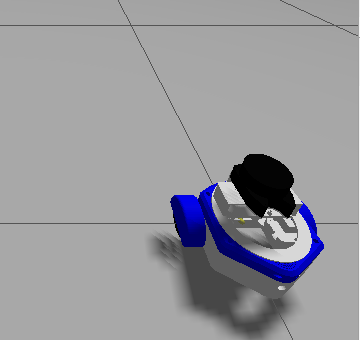
The FOSSBot in the Gazebo simulator: a small differential-drive robot with two blue driving wheels and a lidar (the black cylinder) on top.
Tip: The first launch is slow because Gazebo needs to download some assets. Subsequent launches are fast.
- Open a second terminal attached to the same container (run this on the host, not inside the container):
docker exec -it ros2_fossbot_edu bashThe new shell already has both /opt/ros/jazzy/setup.bash
and the FOSSBot workspace’s install/setup.bash sourced from
~/.bashrc, so ros2 is ready to use
immediately.
Task 4.1
List the nodes that the launch file started:
ros2 node listYou should see at least /robot_state_publisher,
/rviz2, and a ros_gz_bridge node that connects
ROS 2 to Gazebo. This is what a launch file does: it brings up several
cooperating nodes with one command.
Tip: If
ros2 node listis empty in this second terminal, the most common cause is a staleros2daemon left over from a previous session. Restart it withros2 daemon stop ; ros2 daemon startand try again.
Task 4.2
List the topics the running graph exposes:
ros2 topic listAmong them you should find at least:
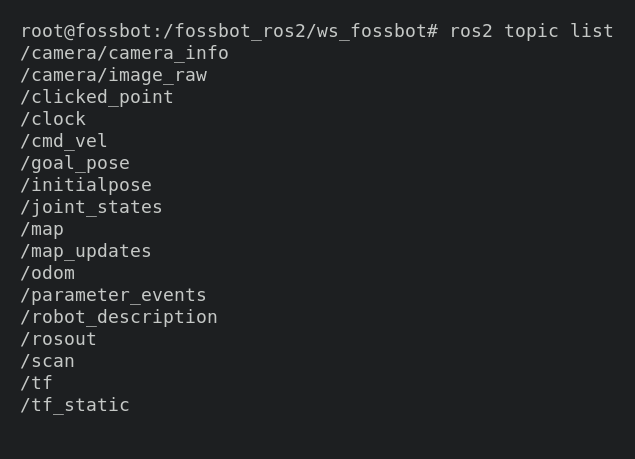
/cmd_vel(movement commands going into the simulator),/scan(lidar measurements coming out of the simulator),/odom(odometry, an estimate of the robot’s position),/camera/image_rawand/camera/camera_info(RGB camera output),/joint_states(wheel joint angles and velocities),/tf(the robot’s coordinate frames),/clock(simulation time).
Task 4.3
Get details on the /scan topic, then inspect the
structure of its message type:
ros2 topic info /scan
ros2 interface show sensor_msgs/msg/LaserScan
Task 4.4
Stream the actual lidar messages as they arrive, then stop the stream
with Ctrl+C:
ros2 topic echo /scanYou will see a long array of distances flying by. The robot is configured to publish at 10 Hz. Confirm the actual rate (it may be lower if Gazebo is CPU-limited):
ros2 topic hz /scanExpected result: You can name at least three topics
the simulator publishes, you know the message type of
/scan, and you have seen live data on it.
Capture for submission: screenshot the Gazebo and RViz2 windows side by side, with the FOSSBot visible in both.
Step 5 - Visualize the graph and the sensors
Task 5.1
In a new terminal inside the container
(docker exec -it ros2_fossbot_edu bash on the host), start
the graph visualiser:
rqt_graphA new window opens. Each box is a node and each arrow is a topic.
Find the ros_gz_bridge node and notice how it sits in the
middle, converting topics back and forth between Gazebo and the ROS 2
graph.
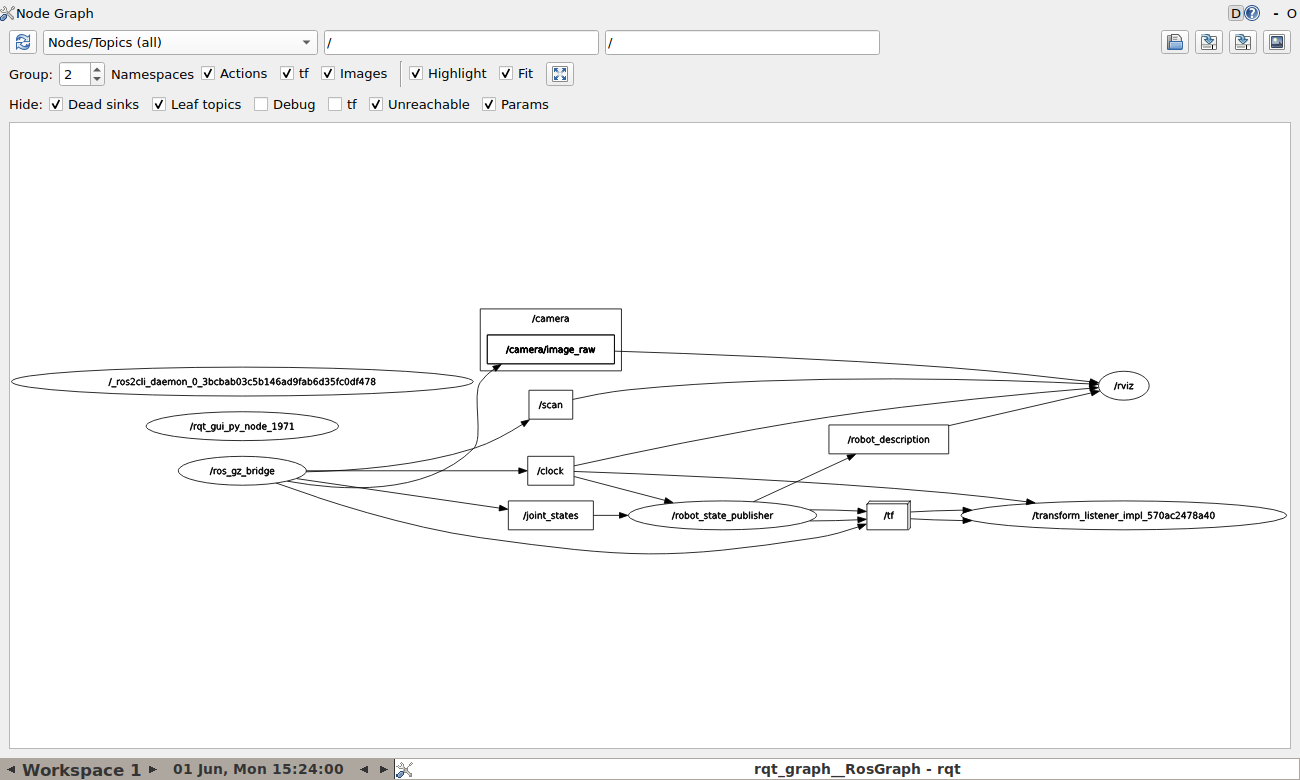
The simulator graph in rqt_graph (with the view set
to Nodes/Topics (all)). The ros_gz_bridge node on
the left relays sensor topics such as /scan,
/clock, /camera/image_raw and
/joint_states between Gazebo and the rest of the ROS 2
graph.
Tip: If the graph looks empty, change the top-left dropdown from Nodes only to Nodes/Topics (all) and click the refresh icon.
Capture for submission: screenshot the
rqt_graphwindow with the FOSSBot nodes visible.
Task 5.2
Switch to the RViz2 window that single.launch.py already
opened. The display configuration that ships with FOSSBotEduSim already
includes:
- the robot model (3D mesh),
- the lidar scan (the cloud of red dots around the robot),
- the camera image (a small panel in the bottom-left).
If any of them are missing, click Add in the Displays panel on the left, then By topic, and add the topic you want to visualise.
Expected result: You can match the boxes in
rqt_graph to the nodes from ros2 node list,
and you can match the visualisations in RViz2 to the topics from
ros2 topic list.
Step 6 - Drive the robot and watch the topics
This is the moment where the publisher/subscriber pattern becomes concrete: one process publishes velocity commands, another subscribes to them, and you can watch the resulting motion change a third topic in real time.
By now you should have these terminals open inside
ros2_fossbot_edu:
- Terminal A: running
single.launch.pyfrom Step 4. Leave it running. - Terminal B: the inspection terminal from Step 4. Free for use again.
- Terminal C: running
rqt_graphfrom Task 5.1. Leave it running.
Open two more (docker exec -it ros2_fossbot_edu bash on
the host; the workspace is already sourced):
Terminal D for teleop,
Terminal E for echoing
/odom.
- In Terminal D, start the keyboard teleoperator. It
publishes
geometry_msgs/msg/Twistmessages on/cmd_velwhenever you press a key:
ros2 run teleop_twist_keyboard teleop_twist_keyboard- In Terminal E, echo the odometry topic:
ros2 topic echo /odomTask 6.1
Click into Terminal D so it receives your keystrokes, then drive the
robot around the world (the keys are documented on the teleop’s own
screen; i moves forward, j/l
rotate, k stops). While you drive, watch Terminal E: the
position and twist fields of
/odom update continuously.
Task 6.2
Drive the robot toward one of the boxes in the world and stop a short distance away. In Terminal B (which is now idle), watch how the lidar reacts:
ros2 topic echo /scan --onceThe --once flag prints a single message and exits, which
is easier to read than the firehose of continuous output. The minimum
value in the ranges array should be small (the box is
close) when the robot is near an obstacle, and large (or
inf) when it is in open space.
Tip:
teleop_twist_keyboardis a publisher on/cmd_vel; theros_gz_bridgenode is a subscriber. The simulator is a publisher on/odomand/scan; yourros2 topic echocommands are subscribers. The same pattern, repeated.
Expected result: As you press keys in the teleop
terminal, the robot moves in Gazebo, the position numbers in the
/odom terminal change, and the lidar values in the
/scan terminal change with the surroundings.
Capture for submission: screenshot a terminal showing
/odom(or/cmd_vel) updating while teleop drives the robot. The numbers should clearly be changing between two snapshots.
9. Analysis Questions
You ran
ros2 interface show sensor_msgs/msg/LaserScanin Task 4.3. Which fields would you need to read to compute the angle (in radians) at which the closest obstacle was seen?In Step 6 you ran
ros2 topic echo /odomin Terminal E. If you opened a sixth terminal and ran the same command there at the same time, what would each terminal receive? What does your answer tell you about how many subscribers a single ROS 2 topic can have?The single
ros2 launch fossbot_educational_description single.launch.pycommand from Step 4 produced several entries inros2 node list. Why is this preferable to opening one terminal per node and starting them by hand?Two students sit next to each other in the lab, each running their own FOSSBotEduSim container on the same Wi-Fi network. Without any extra configuration, what would each of them see in
ros2 topic list? Which single environment variable, set to a different value in each container, fixes the problem?
10. Submission Requirements
A screenshot of the
lsoutput from Step 3 showingbuild/,install/,log/andsrc/in thews_fossbotdirectory.A screenshot of Gazebo and RViz2 with the FOSSBot visible, from Step 4.
A screenshot of
rqt_graphfrom Task 5.1 showing the simulator’s nodes and topics.A screenshot of
/odom(or/cmd_vel) updating in a terminal while teleop drives the robot, from Task 6.1.Short answers (2 to 3 sentences each) to the four analysis questions.
11. References and Open Licence
- ROS 2 Jazzy documentation: https://docs.ros.org/en/jazzy/
- ROS 2 graph concepts: https://docs.ros.org/en/jazzy/Concepts/Basic.html
colcondocumentation: https://colcon.readthedocs.io/- About
ROS_DOMAIN_ID: https://docs.ros.org/en/jazzy/Concepts/About-Domain-ID.html - FOSSBotEduSim repository: https://github.com/LRMPUT/FOSSBotEduSim
- Loosely based on the Introduction to ROS 2 lab in the
lab-tasfrscourse, Poznan University of Technology, Institute of Robotics and Machine Intelligence.
The Creative Commons Attribution 4.0 International (CC BY 4.0) license allows users to share, copy, distribute, and adapt the work, even for commercial purposes, as long as proper credit is given to the original creator.
EU funding disclaimer
Funded by the European Union. Views and opinions expressed are however those of the author(s) only and do not necessarily reflect those of the European Union or the European Education and Culture Executive Agency (EACEA). Neither the European Union nor EACEA can be held responsible for them.