Lab 07 - ROS2 node development and programming
Robot Operating System 2 - node development and programming

1. Activity Identity
| Activity title | Introduction to Robotics |
|---|---|
| Topic | [AI / ML / NLP / Python / Algorithms / Computer Vision / IoT / Robotics] |
| Authors | Institute of Robotics and Machine Intelligence Dominik Belter, Jakub Chudzinski, Marcin Czajka, Kamil Młodzikowski |
| Target learners | Bachelor |
| Estimated duration | 1.5 hour |
| Difficulty level | Beginner / Intermediate / Advanced |
| FOSSBot environment | FOSSBot:v2 / Simulator / Hybrid |
| Licence | CC BY 4.0 |
2. Learning Objectives and Competences
| ID | Learning outcome | Related competances | Assessment evidence |
|---|---|---|---|
| LO1 | [Students will be able to…] | [Computational thinking / AI model use / sensor interfacing / teamwork] | [Code, screenshot, observation table, short report] |
| LO2 | [Students will be able to…] | [Computational thinking / AI model use / sensor interfacing / teamwork] | [Code, screenshot, observation table, short report] |
| LO3 | [Students will be able to…] | [Computational thinking / AI model use / sensor interfacing / teamwork] | [Code, screenshot, observation table, short report] |
3. Prerequisites
Basic terminal and ROS2 command-line tools knowledge
Basic knowledge of Python programming
Basic understanding of ROS2 concepts (nodes, topics, messages)
Basic understanding of LIDAR sensors
Safety rules for powered electronics
Ability to capture evidence: screenshots, logs or observation tables
4. Required Material and Setup
| Category | Item | Version / Quantity | Notes |
|---|---|---|---|
| Hardware | FOSSBot:v2 kit | [Qty] | [Sensors / camera / battery / router] |
| Software | Python / IDE / simulator | [Version] | [Installation link or repository] |
| Dataset / model | [Dataset/model name] | [Version] | [Licence / source] |
| Consumables | [Cables, cards, printed parts] | [Qty] | Optional |
5. Safety, Ethics and Accessibility Notes
Battery and wiring safety must be checked before powering the robot.
All tasks are possible to be performed in simulation if physical robot is not available
6. Scenario and Problem Statement
The robots are equipped with LIDAR sensors that provide distance measurements to nearby objects. Your task is to develop a ROS2 node that processes the LIDAR data to detect obstacles and publish relevant information about the environment. This will involve subscribing to the LIDAR data topic, processing the incoming messages to extract useful information, and publishing the results to new topics for other nodes to use.
7. Lab Workflow
| Phase | Student action | Expected output | Time |
|---|---|---|---|
| 1. Prepare | Install/check environment | Ready-to-run setup | [5 min] |
| 2. Build / Connect | Configure FOSSBot or simulator | Validated connection | [5 min] |
| 3. Implement | Complete code/model/activity steps | A ROS2 node for LIDAR processing | [40 min] |
| 4. Test | Run experiment and collect evidence | Results table/screenshots | [30 min] |
| 5. Reflect | Answer synthesis questions | Short analysis | [10 min] |
8. Step-by-Step Instructions
Step 1 - Environment preparation
Check if you have the FOSSBot ros2 environment set up (if not, install it following the instructions in the repository).
Open a terminal and source the ROS2 setup file:
source /opt/ros/jazzy/setup.bash[Insert numbered actions. Use short sentences and one action per line.] Expected result: [Describe what students should observe before moving to the next step.]
Step 2 - Simulator configuration
- Launch the FOSSBot simulator with the single wall world:
ros2 launch fossbot_educational_description single.launch.py world:=single_wall.sdfEnsure that in Gazebo you can see the robot and the wall.
Check if the robot is publishing sensor data by running:
ros2 topic listand check if you can see the topic /scan for the LIDAR
data.
Expected result: You should be able to see the robot
in the Gazebo simulator, the robot and a red line of points in RViz and
find the topic /scan in the list of ROS2 topics. Here is a
screenshot of the expected result: 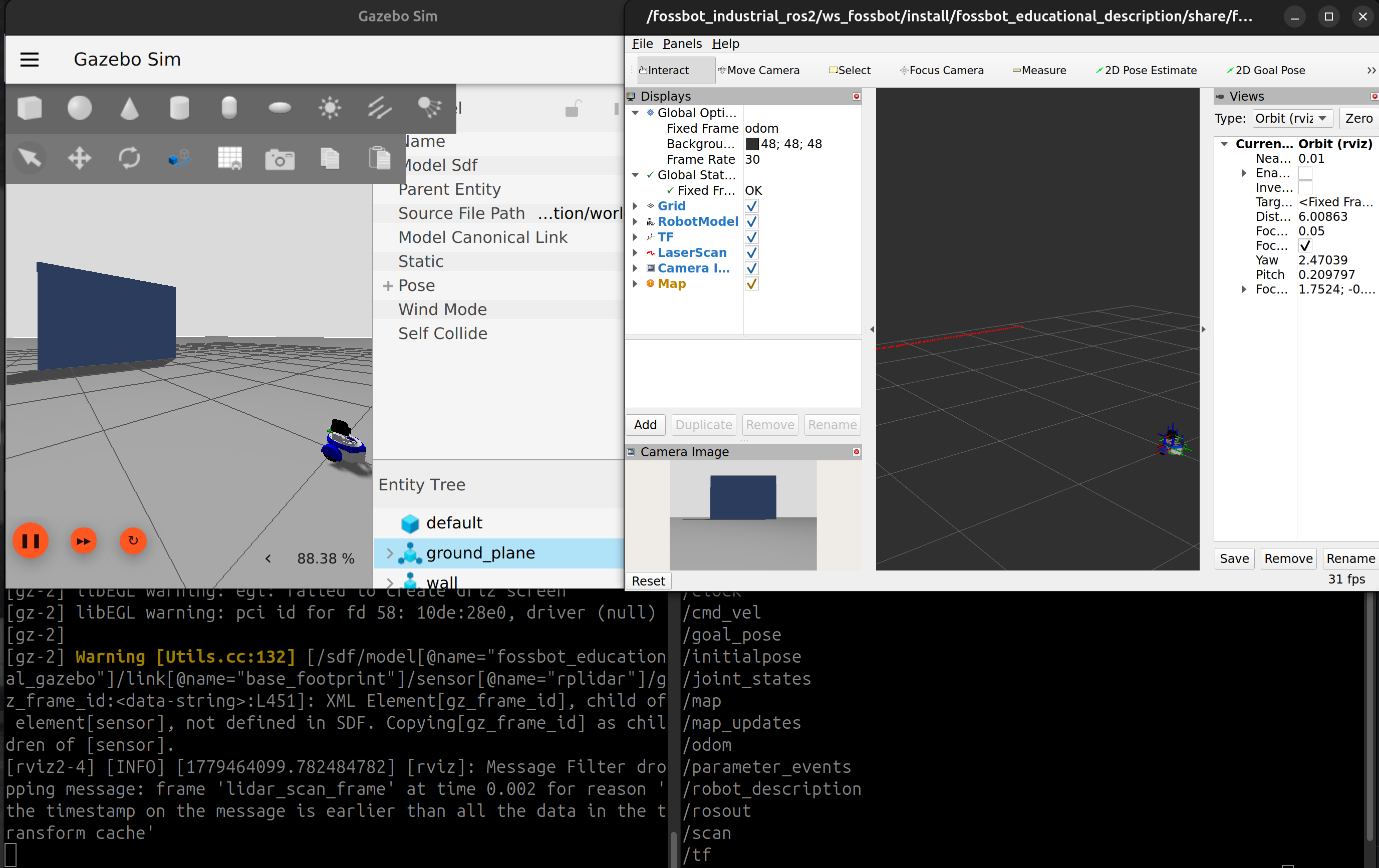
Step 3 - Check the ROS2 topic and message type
- Check the type of messages published on the
/scantopic by running:
ros2 topic info /scan- Check the definition of the message type
(
sensor_msgs/msg/LaserScan) by running:
ros2 interface show sensor_msgs/msg/LaserScan[!tip] The
ros2 interface showcommand displays the structure of a ROS2 message type, which is useful for understanding the data format. You should always check what fields are available and what their types are before trying to use the data in your code.
Expected result: You should see the structure of the
LaserScan message. Please note that apart from the
header, the rest of the fields are either floats or arrays
of floats. This information will be crucial for processing the LIDAR
data in your code.
Step 4 - Initial ROS2 package and node implementation
In the previous classes, you were working with ROS2 from terminal, using command-line tools and pre-built nodes. Now, you will implement your own ROS2 node in Python that will utilize the LIDAR data.
- Create a new ROS2 package inside your ROS2 workspace
srcdirectory:
ros2 pkg create --build-type ament_python --node-name fossbot_lidar_node fossbot_lidar_processing[!tip] This command creates a new ROS2 package named
fossbot_lidar_processingwith an optional Python node namedfossbot_lidar_node. The--build-type ament_pythonflag indicates that this package will contain Python code.
- Take a look at the newly created package. You should see such a structure:
fossbot_lidar_processing/
├── fossbot_lidar_processing
│   ├── __init__.py
│   └── fossbot_lidar_node.py
├── package.xml
├── resource
│   └── fossbot_lidar_processing
├── setup.cfg
├── setup.py
└── test
    ├── test_copyright.py
    ├── test_flake8.py
    └── test_pep257.py
Below is a brief description of the most important files and
directories: - the top level fossbot_lidar_processing
directory is the root of your package, - the
fossbot_lidar_processing subdirectory is where your Python
code will go, and it contains an __init__.py file (which
makes it a Python module) and a fossbot_lidar_node.py file
(which is where you will implement your ROS2 node), - the
package.xml file contains metadata about your package, such
as its name, version, dependencies, - the setup.py and
setup.cfg files are used for building and installing your
package; if you add a new Python file in the
fossbot_lidar_processing directory, you will need to update
the entry_points section in the setup.py file
to include it in the package, - the resource directory is
used for storing any additional resources your package might need, - the
test directory is where you can put any test scripts for
your package.
- Build your ROS2 workspace (make sure you are in the root of your
workspace, where the
srcdirectory is located) by running:
colcon buildand source the setup file:
source install/setup.bash[!tip] The
colcon buildcommand builds the ROS2 workspace, compiling all packages and their dependencies. If you want to build only your package, you can use the--packages-selectflag:colcon build --packages-select fossbot_lidar_processing
[!tip] If for any reason after rebuilding your workspace the changes are not reflected when you run your node, you can try to remove the
installdirectory and then rebuild the workspace again.
- Run your ROS2 node:
ros2 run fossbot_lidar_processing fossbot_lidar_nodeExpected result:
You should see the output of your ROS2 node in the terminal
Hi from fossbot_lidar_processing..
Step 5 - Implement LIDAR data processing inside a ROS2 node
- Open the
fossbot_lidar_node.pyfile and modify it to subscribe to the/scantopic. For now, we want to log an information that a new LIDAR scan is received. You can use the following code as a starting point:
# Import necessary ROS2 libraries and message types
import rclpy
from rclpy.node import Node
from sensor_msgs.msg import LaserScan

# Node for processing LIDAR data
class FossbotLidarNode(Node):
    # Initialization of the node
    def __init__(self):
        # Call the constructor of the parent class
        super().__init__('fossbot_lidar_node')

        # Create a subscriber to the /scan topic
        # with LaserScan message type
        # The callback function is scan_callback
        # and the queue size is 10
        self.subscriber = self.create_subscription(
            LaserScan,
            '/scan',
            self.scan_callback,
            10
        )

    # Callback function to process incoming LIDAR scans
    def scan_callback(self, msg):
        # This is the ROS2 logging approach
        # Apart from `.info()`, you can also use `.debug()`,
        # `.warn()`, `.error()`, and `.fatal()`
        # for different log levels
        self.get_logger().info('Received a LIDAR scan')

# Main function to initialize the ROS2 node
# and start spinning
def main(args=None):
    rclpy.init(args=args)
    node = FossbotLidarNode()
    rclpy.spin(node)
    node.destroy_node()
    rclpy.shutdown()

if __name__ == '__main__':
    main()
You will need to update the package.xml file to include
the sensor_msgs dependency. Above the
<export> tag in package.xml, add the
following lines:
  <exec_depend>rclpy</exec_depend>
  <exec_depend>sensor_msgs</exec_depend>
Now, rebuild your workspace and run the node again. You should see
the message Received a LIDAR scan in the terminal every
time a new LIDAR scan is received.
- Modify the
scan_callbackfunction to log the minimum distance measured by the LIDAR. To obtain a value from a field of a message, you can use the dot notation. For example, to access therangesfield of theLaserScanmessage, you can usemsg.ranges. To find the minimum distance, you can use the built-inmin()function in Python.
Rebuild your workspace and run the node again. You should see the minimum distance measured by the LIDAR in the terminal.
In a second terminal, you run a teleop node to move the robot around and observe how the minimum distance changes as the robot approaches or moves away from the wall.
ros2 run teleop_twist_keyboard teleop_twist_keyboard- Move the robot away from the wall. Try to get to a distance of around 10 meters. Observe the minimum distance value in the terminal.
Have you noticed something unusual about the minimum distance value? Do you have any idea why it is happening?
Answer
A LIDAR sensor has a maximum range. If the sensor does not detect any obstacle within its maximum range, it will return a special value (ofteninf) to indicate that no obstacle was detected. You can
check the maximum range of the LIDAR sensor in the
range_max field of the LaserScan message.
- Modify the
scan_callbackfunction to check if the minimum distance is equal to the maximum range. If it is, log a message indicating that no obstacle was detected. Otherwise, log the minimum distance.
Expected result: When you run the node and move the robot around, you should see messages in the terminal indicating whether an obstacle was detected or not, and if it was detected, what the minimum distance is.
Step 6 - Publishing messages
In the previous step you learned how to subscribe to a ROS2 topic and process incoming messages. Now, you will learn how to publish messages to a ROS2 topic.
- Create a publisher in your initialization function that will publish
messages of type
std_msgs/msg/Stringto a topic named/lidar_status. Remember to import theStringmessage type at the top of your Python file:
from std_msgs.msg import Stringand in the __init__(self) function, add the following
code to create the publisher:
self.publisher = self.create_publisher(String, '/lidar_status', 10)Remember to add the std_msgs dependency in your
package.xml file:
<exec_depend>std_msgs</exec_depend>Rebuild and source your workspace after making these changes.
[!tip] The name
self.publisheris just a convention. You can name your publisher variable anything you want, but using descriptive names is a good practice for code readability.
- Check the message definition of the
Stringmessage type by running:
ros2 interface show std_msgs/msg/StringFor now, we don’t have to worry about the deprecation warning. Make sure to remember the field name, as you will need it to create and publish messages in the next step.
- Modify the
scan_callbackfunction to publish a message to the/lidar_statustopic indicating whether an obstacle was detected or not, and if it was detected, what the minimum distance is.
To create a message, you can instantiate the message class and set its fields. For example:
my_msg = String()
my_msg.data = 'Hello, this is a message from the LIDAR node.'
To publish a message, you can use the publish() method
of the publisher object. For example:
self.publisher.publish(my_msg)[!tip] If you want to include variable values in your message, you can use f-strings in Python. For example:
my_string = f'Min distance: {min_distance}'
Rebuild and source your workspace after making these changes.
Expected result: After running your node, you should
see messages being published to the /lidar_status topic.
You can check the messages being published by running:
ros2 topic echo /lidar_statusStep 7 - Parameterization and launch files
In the previous steps, you have hardcoded the topic names and other parameters in your code. Now, you will learn how to use ROS2 parameters to make your node more flexible and configurable.
- Modify your node to declare a parameter named
lidar_topicandlidar_status_topicthat will allow you to specify the name of the LIDAR topics to subscribe and publish to. You can declare a parameter in the__init__(self)function like this:
self.declare_parameter('lidar_topic', '/scan')where /scan is the default value for the parameter.
- Modify your subscription to use the value of the
lidar_topicparameter instead of hardcoding the topic name. You can get the value of a parameter using theget_parameter()method. For example:
lidar_topic = self.get_parameter('lidar_topic').get_parameter_value().string_valueand update the self.subscriber and
self.publisher line to use the variables.
Rebuild and source your workspace after making these changes.
To run your parameterized node, you can use the
--ros-args flag to set the parameter values from the
command line. For example:
ros2 run fossbot_lidar_processing fossbot_lidar_node \
 --ros-args -p lidar_topic:=/scan \
-p lidar_status_topic:=/new_lidar_status- Inside the package directory, create a new directory named
launchand inside it create a new Python file namedlidar_node_launch.py. In this file, you will create a ROS2 launch file that will launch your node with the desired parameters. You can use the following code as a starting point:
from launch import LaunchDescription
from launch.actions import DeclareLaunchArgument
from launch.substitutions import LaunchConfiguration
from launch_ros.actions import Node


def generate_launch_description():
    lidar_topic = LaunchConfiguration('lidar_topic', default='/scan')
    lidar_info_topic = LaunchConfiguration('lidar_info_topic', default='/lidar_info')
    # Create a Node action for the LIDAR processing node
    fossbot_lidar_processing_node = Node(
        # The package where the node is located
        package='fossbot_lidar_processing',

        # The executable name of the node
        # (from the entry_points in setup.py)
        executable='fossbot_lidar_node',

        # The name of the node
        # (important if you want to run the same node
        # multiple times with different parameters)
        name='fossbot_lidar_node',

        # The parameters to pass to the node
        parameters=[{
            'lidar_topic': lidar_topic,
            'lidar_info_topic': lidar_info_topic
        }]
    )

    return LaunchDescription([
        DeclareLaunchArgument(
            'lidar_topic',
            default_value='/scan'
        ),
        DeclareLaunchArgument(
            'lidar_info_topic',
            default_value='/lidar_info'
        ),
        fossbot_lidar_processing_node
    ])
Now edit the setup.py file to include the launch file in
the package. At the top of the code import glob, to be able to find all
the launch files in the launch directory:
from glob import globand in the data_files section, add the following line to
include all launch files:
('share/' + package_name + '/launch', glob.glob('launch/*.py')),In the package.xml file, add the dependencies above the
<export> tag:
<exec_depend>launch</exec_depend>
<exec_depend>launch_ros</exec_depend>
Finally, rebuild and source your workspace after making these changes. You can now launch your node using the launch file:
ros2 launch fossbot_lidar_processing lidar_node_launch.py- Edit the launch file to include the simulator launch file as well.
This way, you will be able to launch both the simulator and your node
with a single command. You can use the
IncludeLaunchDescriptionaction to include another launch file.
Your imports should look like this:
from launch import LaunchDescription
from launch.actions import IncludeLaunchDescription, DeclareLaunchArgument
from launch.launch_description_sources import PythonLaunchDescriptionSource
from launch.substitutions import LaunchConfiguration
from launch_ros.actions import Node
from ament_index_python.packages import get_package_share_directory
import os
and in the generate_launch_description() function, add
the following code to include the simulator launch file:
    world = LaunchConfiguration('world', default='single_wall.sdf')
    sim_launch = IncludeLaunchDescription(
        PythonLaunchDescriptionSource(
            os.path.join(
                get_package_share_directory('fossbot_educational_description'),
                'launch',
                'single.launch.py'
            )
        ),
        launch_arguments={'world': world}.items()
    )
and the return statement should look like this:
    return LaunchDescription([
        DeclareLaunchArgument(
            'lidar_topic',
            default_value='/scan'
        ),
        DeclareLaunchArgument(
            'lidar_info_topic',
            default_value='/lidar_info'
        ),
        DeclareLaunchArgument(
            'world',
            default_value='single_wall.sdf'
        ),
        sim_launch,
        fossbot_lidar_processing_node,
    ])
Add the fossbot_educational_description dependency in
your package.xml file:
<exec_depend>fossbot_educational_description</exec_depend>Expected result: Now, when you run the launch file, it should start both the simulator and your LIDAR processing node. You should see the simulator window open with the robot and the wall, and in the terminal, you should see the messages from your node indicating whether an obstacle was detected or not.
Step 8 - Experimentation and evidence collection
Prepare the following tasks and prepare to collect evidence (screenshots/screen recordings) for each of them:
Modify the node to also publish the angle at which the minimum distance is detected. Keep the angle in radians. Use the
angle_min,angle_increment, and the index of the minimum distance in therangesarray to calculate the angle. Publish this information in a singleStringmessage along with the minimum distance.Modify the node to process the LIDAR data and determine if there is an obstacle within a certain distance threshold. Publish a warning message of type
std_msgs/msg/Boolto a new topic if an obstacle is detected within the threshold.
9. Analysis Questions
What fields of the
LaserScanmessage do you think are most important for obstacle detection?What are the biggest advantages of using parametrization and launch files in ROS2?
10. Submission Requirements
Completed source code of the created package
Short answer to analysis questions
11. References and Open Licence
[Add references, datasets, libraries, repositories, and licensing information. Mention original authors where applicable.]
The Creative Commons Attribution 4.0 International (CC BY 4.0) license allows users to share, copy, distribute, and adapt the work, even for commercial purposes, as long as proper credit is given to the original creator.
EU funding disclaimer
Funded by the European Union. Views and opinions expressed are however those of the author(s) only and do not necessarily reflect those of the European Union or the European Education and Culture Executive Agency (EACEA). Neither the European Union nor EACEA can be held responsible for them.