Lab 08 - Gesture-based steering
Gesture-based steering

1. Activity Identity
| Activity title | Introduction to Robotics |
|---|---|
| Topic | Robotics / ROS 2 / Computer Vision |
| Authors | Institute of Robotics and Machine Intelligence Dominik Belter, Jakub Chudzinski, Marcin Czajka, Kamil Młodzikowski |
| Target learners | Bachelor (Computer Science / IT, Robotics) |
| Estimated duration | 1.5 hours |
| Difficulty level | Intermediate |
| FOSSBot environment | Hybrid (Simulator and physical FOSSBot) |
| Licence | CC BY 4.0 |
2. Learning Objectives and Competences
| ID | Learning outcome | Related competences | Assessment evidence |
|---|---|---|---|
| LO1 | Students will be able to capture webcam video inside a ROS 2 node and detect hand landmarks with MediaPipe. | Computer vision; sensor interfacing; ROS 2 node development. | The working node and a screenshot of the preview window with landmarks (Submission item 1). |
| LO2 | Students will be able to classify hand landmarks into commands and
map them to geometry_msgs/msg/Twist on
/cmd_vel, stopping safely on any unrecognised input. |
Computational thinking; designing a safe control mapping. | The completed classify_gesture and
gesture_to_twist functions (Submission item 1). |
| LO3 | Students will be able to steer both the simulated and the real FOSSBot using hand gestures. | Transferring a method from simulation to hardware; operating a robot safely. | Screenshots of gestures driving the robot in simulation and on hardware (Submission item 2). |
3. Prerequisites
Labs 05, 06 and 07 completed: you can start the FOSSBotEduSim container, drive the robot through
/cmd_velwith aTwistmessage, and create and build a ROS 2 Python package.Basic Python programming.
A working webcam on your workstation.
For the final step only: access to the lab Wi-Fi network and a physical FOSSBot.
Ability to capture evidence: screenshots and the completed source code.
4. Required Material and Setup
| Category | Item | Version / Quantity | Notes |
|---|---|---|---|
| Hardware | Workstation + webcam | 1 per student | The Docker-capable Linux PC from the earlier labs, with a webcam (built-in or USB). |
| Software | FOSSBotEduSim simulator | latest from main branch |
The ros2_fossbot_edu Docker image from Lab 05, plus the
mediapipe package installed in Step 1. |
| Hardware | Physical FOSSBot | 1 per group (final step only) | Instructor-provided and powered on. |
| Hardware | Lab Wi-Fi router / AP | 1 per room (final step only) | See Connecting to real robot. |
Tip: All steps up to and including Step 7 work without the physical robot.
5. Safety, Ethics and Accessibility Notes
start_container.shruns the container with reduced isolation (host networking, GPU and X-server access) so the GUIs and the webcam work. Use it only with the FOSSBotEduSim image you built yourself, and runxhost -local:rootafterwards on shared machines.The webcam video is processed locally on your machine. Nothing is uploaded, and you do not need to store any video to complete this lab.
Step 8 commands real hardware. The connection and safety procedure is in Connecting to real robot: clear the floor, keep speeds low, and remember that the safe way to stop the robot is to show no hand (or remove your hand from the camera).
6. Scenario and Problem Statement
Keyboards are not the only way to drive a robot. In this lab you build a natural interface: the robot watches your hand through a camera and obeys simple gestures. An index finger pointing up means go forward, an open hand means reverse, a thumb to the side means turn, and anything the system does not clearly recognise means stop.
That last rule is the most important one. A control system that keeps moving when it is unsure is dangerous, so your node will default to stopping whenever it does not see a clear, known gesture.
7. Lab Workflow
| Phase | Student action | Expected output | Time |
|---|---|---|---|
| 1. Prepare | Start the container with webcam access, install MediaPipe | A container that can see the webcam and
import mediapipe |
10 min |
| 2. Concepts | Read how hand landmarks become commands | A mental model of the pipeline | 5 min |
| 3. Create the package | Make a ROS 2 Python package for the node | An empty buildable package | 5 min |
| 4. Add the skeleton | Paste the provided node and run it | The preview window opens, robot stays still (stop) | 15 min |
| 5. Recognise gestures | Implement classify_gesture |
Each gesture prints its label | 25 min |
| 6. Map to motion | Implement gesture_to_twist |
Gestures change /cmd_vel |
15 min |
| 7. Drive the simulator | Steer the simulated robot by gesture | The robot moves as you gesture | 5 min |
| 8. Drive a real robot | Repeat on a physical FOSSBot | The real robot moves as you gesture | 10 min |
8. Step-by-Step Instructions
Step 1 - Environment preparation
This lab runs in the same ros2_fossbot_edu Docker
container as the earlier labs, but it also needs the webcam, which the
standard start_container.sh does not pass through. The
steps below set everything up from scratch.
- Get the FOSSBotEduSim image. If you already built it in Lab 05, skip to the next step. Otherwise clone the repository and build the image (this downloads several gigabytes and takes 15 to 25 minutes the first time):
git clone https://github.com/LRMPUT/FOSSBotEduSim.git
cd FOSSBotEduSim
bash build_image.sh- Start the container with display and webcam access.
Run the following from inside the
FOSSBotEduSimdirectory. It is the same setupstart_container.shperforms (X-server access, GPU passthrough, host networking, and the workspace mount), with one extra line,--device=/dev/video0:/dev/video0, that gives the container your webcam:
xhost +local:root
XAUTH=/tmp/.docker.xauth
touch $XAUTH
xauth nlist :0 | sed -e 's/^..../ffff/' | xauth -f $XAUTH nmerge - 2>/dev/null
chmod a+r $XAUTH

docker run -it --rm \
    --name=ros2_fossbot_edu \
    --shm-size=1g \
    --ulimit memlock=-1 \
    --env="DISPLAY=$DISPLAY" \
    --env="QT_X11_NO_MITSHM=1" \
    --env="XAUTHORITY=$XAUTH" \
    --volume="$XAUTH:$XAUTH" \
    --volume="/tmp/.X11-unix:/tmp/.X11-unix:rw" \
    --volume="$(pwd)/ws_fossbot:/fossbot_ros2/ws_fossbot" \
    --device=/dev/dri:/dev/dri \
    --device=/dev/video0:/dev/video0 \
    --group-add video \
    --gpus 'all,"capabilities=compute,utility,graphics"' \
    --env="NVIDIA_VISIBLE_DEVICES=all" \
    --env="NVIDIA_DRIVER_CAPABILITIES=all" \
    --network=host \
    --pid=host \
    --ipc=host \
    ros2_fossbot_edu \
    bash
Tip: On a machine without an NVIDIA GPU, remove the
--gpus,NVIDIA_VISIBLE_DEVICESandNVIDIA_DRIVER_CAPABILITIESlines. If your webcam is not/dev/video0(for example you have several cameras), list them withls /dev/video*on the host and use the right number; you will then also pass that number tocv2.VideoCapturein the node.
No webcam? Use the sample video instead
If you do not have a webcam, you can read a recorded video of the
gestures as if it were a camera. You can then drop the
--device=/dev/video0:/dev/video0 line from the
docker run command above, since no camera is needed.
Download the video inside the container:
wget -O ~/gestures.mp4 https://put-jug.github.io/lab-intro-to-robotics/_images/l8_gestures.mp4Then in the node, replace cv2.VideoCapture(0) with the
file path:
self.capture = cv2.VideoCapture(os.path.expanduser("~/gestures.mp4"))OpenCV reads the file frame by frame just like a webcam. The video plays through once; restart the node to play it again.
- Install MediaPipe inside the container. The base
image does not ship
pip, so install it first, then MediaPipe (which brings its own OpenCV):
apt update && apt install -y python3-pip
python3 -m pip install --break-system-packages --ignore-installed mediapipe
Tip: The
--ignore-installedflag lets MediaPipe install the package versions it needs (it upgradesnumpy) without fighting the system packages. This is expected and does not affect this lab.
- Download the hand-landmark model. MediaPipe needs a model file to find hands in an image:
wget -O ~/hand_landmarker.task \
https://storage.googleapis.com/mediapipe-models/hand_landmarker/hand_landmarker/float16/1/hand_landmarker.task- Bild the workspace:
colcon build
source install/setup.bash- Launch the simulator
ros2 launch fossbot_educational_description single.launch.py world:=simple_shapes.sdfExpected result: The container starts with a shell
prompt, import mediapipe, cv2 succeeds,
~/hand_landmarker.task exists, and
ros2 topic list shows /cmd_vel.
Step 2 - How gesture steering works
The node you build runs a small pipeline, once per camera frame:
- Grab a frame from the webcam with OpenCV.
- Find the hand. MediaPipe returns 21
landmarks per hand: a point (with
x,ycoordinates between 0 and 1) for the wrist, and for each joint of each finger. The numbering is fixed: the wrist is 0, the thumb tip is 4, the index finger tip is 8, and so on up to the pinky tip at 20. - Classify the gesture from those landmark positions (your job in Step 5).
- Turn the gesture into a velocity and publish it as
a
geometry_msgs/msg/Twiston/cmd_vel, exactly the message you drove the robot with in Lab 06.
Two design rules matter:
- Stop by default. If no hand is visible, or the
gesture is not one you recognise, publish a zero
Twist. - Keep publishing. As you saw in Lab 06, the robot’s controller stops the wheels if no command arrives for a short time. The node publishes every frame (about 10 times a second), so the robot keeps moving while you hold a gesture.
The coordinate system matters for left and right: in an image,
x grows to the right and y grows
downward. A finger that points up therefore has its tip at a
smaller y than its lower joints.
Step 3 - Create the package
In new terminal window
(docker exec -it ros2_fossbot_edu bash), in the workspace
src directory, create a Python package with one node, the
same way you did in Lab 07:
cd /fossbot_ros2/ws_fossbot/src
ros2 pkg create --build-type ament_python --node-name gesture_steering fossbot_gesture_control
Add the ROS 2 dependencies above the <export> tag
in fossbot_gesture_control/package.xml (you can use
nano as the file editor or open
the container in VS Code):
  <exec_depend>rclpy</exec_depend>
  <exec_depend>geometry_msgs</exec_depend>
Tip:
mediapipeandopencvare Python packages installed withpip, not ROS 2 packages, so they do not go inpackage.xml. You already installed them in Step 1.
Expected result: A package
fossbot_gesture_control with a
gesture_steering.py file inside it.
Step 4 - Add the node skeleton
Open
fossbot_gesture_control/fossbot_gesture_control/gesture_steering.py
and replace its contents with the skeleton below. It does everything
except recognise gestures and turn them into motion, which you will add
in the next two steps. As written, it always reports stop,
so the robot will not move yet.
import os
import rclpy
from rclpy.node import Node
from geometry_msgs.msg import Twist
import cv2
import mediapipe as mp
from mediapipe.tasks import python as mp_python
from mediapipe.tasks.python import vision

# MediaPipe hand landmark indices (21 points per hand)
THUMB_TIP = 4
INDEX_MCP, INDEX_PIP, INDEX_TIP = 5, 6, 8
MIDDLE_PIP, MIDDLE_TIP = 10, 12
RING_PIP, RING_TIP = 14, 16
PINKY_PIP, PINKY_TIP = 18, 20

FORWARD_SPEED = 0.2   # metres per second
TURN_SPEED = 0.5      # radians per second

def classify_gesture(landmarks):
    """Return one of 'forward', 'back', 'left', 'right' or 'stop'.

    `landmarks` is a list of 21 points, each with `.x` and `.y` in [0, 1].
    x grows to the right, y grows downward.
    """

    # TODO (Step 5): replace this with the gesture rules.
    return "stop"


def gesture_to_twist(gesture):
    """Turn a gesture label into a Twist velocity command."""
    twist = Twist()
    # TODO (Step 6): set twist.linear.x / twist.angular.z for each gesture.
    return twist


class GestureSteering(Node):
    def __init__(self):
        super().__init__("gesture_steering")
        self.publisher = self.create_publisher(Twist, "/cmd_vel", 10)

        model_path = os.path.expanduser("~/hand_landmarker.task")
        options = vision.HandLandmarkerOptions(
            base_options=mp_python.BaseOptions(model_asset_path=model_path),
            num_hands=1)
        self.landmarker = vision.HandLandmarker.create_from_options(options)

        self.capture = cv2.VideoCapture(0)            # 0 = default webcam
        self.timer = self.create_timer(0.1, self.process_frame)   # 10 Hz

    def process_frame(self):
        ok, frame = self.capture.read()
        if not ok:
            return
        frame = cv2.flip(frame, 1)                    # mirror, so it feels natural
        rgb = cv2.cvtColor(frame, cv2.COLOR_BGR2RGB)
        result = self.landmarker.detect(
            mp.Image(image_format=mp.ImageFormat.SRGB, data=rgb))

        gesture = "stop"
        if result.hand_landmarks:
            landmarks = result.hand_landmarks[0]
            gesture = classify_gesture(landmarks)
            self.draw_landmarks(frame, landmarks)

        self.publisher.publish(gesture_to_twist(gesture))

        cv2.putText(frame, gesture, (10, 40),
                    cv2.FONT_HERSHEY_SIMPLEX, 1.2, (0, 255, 0), 2)
        cv2.imshow("Gesture steering", frame)
        cv2.waitKey(1)

    def draw_landmarks(self, frame, landmarks):
        h, w = frame.shape[:2]
        for lm in landmarks:
            cv2.circle(frame, (int(lm.x * w), int(lm.y * h)), 4, (0, 0, 255), -1)


def main():
    rclpy.init()
    node = GestureSteering()
    try:
        rclpy.spin(node)
    except KeyboardInterrupt:
        pass
    finally:
        node.publisher.publish(Twist())     # stop the robot on exit
        node.capture.release()
        cv2.destroyAllWindows()
        node.destroy_node()
        rclpy.shutdown()


if __name__ == "__main__":
    main()
Build and run it:
cd /fossbot_ros2/ws_fossbot
colcon build --packages-select fossbot_gesture_control
source install/setup.bash
ros2 run fossbot_gesture_control gesture_steering
A window opens showing your webcam. When your hand is in view, red
dots mark the landmarks, and the label in the corner reads
stop for now.
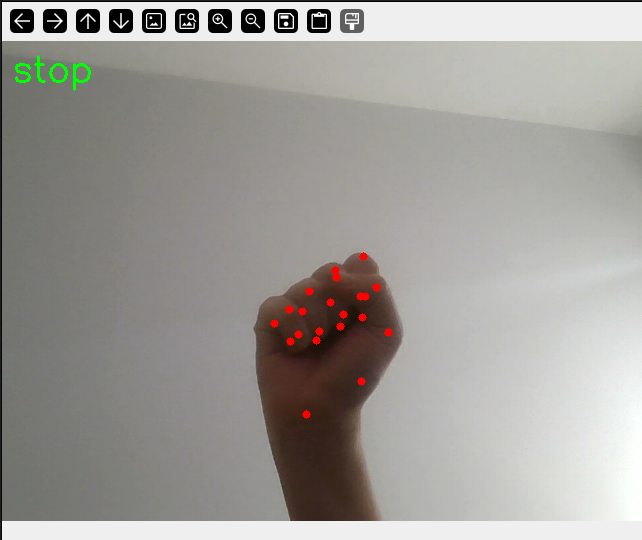
Expected result: The preview window shows your hand
with landmark dots. ros2 topic echo /cmd_vel shows an
all-zero Twist (the robot does not move yet).
Step 5 - Recognise the gestures
Now fill in classify_gesture. Start with a small helper
that decides whether a finger is extended. For the four fingers (not the
thumb), an extended finger held upright has its tip above its
middle joint, which means a smaller y:
def finger_extended(landmarks, tip, pip):
    return landmarks[tip].y < landmarks[pip].y
Using that helper, work out the state of each finger inside
classify_gesture:
    index = finger_extended(landmarks, INDEX_TIP, INDEX_PIP)
    middle = finger_extended(landmarks, MIDDLE_TIP, MIDDLE_PIP)
    ring = finger_extended(landmarks, RING_TIP, RING_PIP)
    pinky = finger_extended(landmarks, PINKY_TIP, PINKY_PIP)
Then implement these rules, in order, and return "stop"
if none match:
- forward when only the index finger is extended (index up, the other three folded).
- back when all four fingers are extended (an open hand).
- left or right when all four fingers are folded and the thumb sticks out to the side. Decide the direction from how far the thumb tip is from the base of the index finger, horizontally:
    fingers_folded = not (index or middle or ring or pinky)
    if fingers_folded:
        dx = landmarks[THUMB_TIP].x - landmarks[INDEX_MCP].x
        if abs(dx) > 0.1:
            return "left" if dx < 0 else "right"
Tip: Because the image is mirrored, “left” and “right” follow your own point of view. If they feel swapped when you test, either change
cv2.flip(frame, 1)to not mirror, or swap the two labels.
Build and run again. The label in the corner should now change as you make each gesture. Capture one screenshot per gesture.
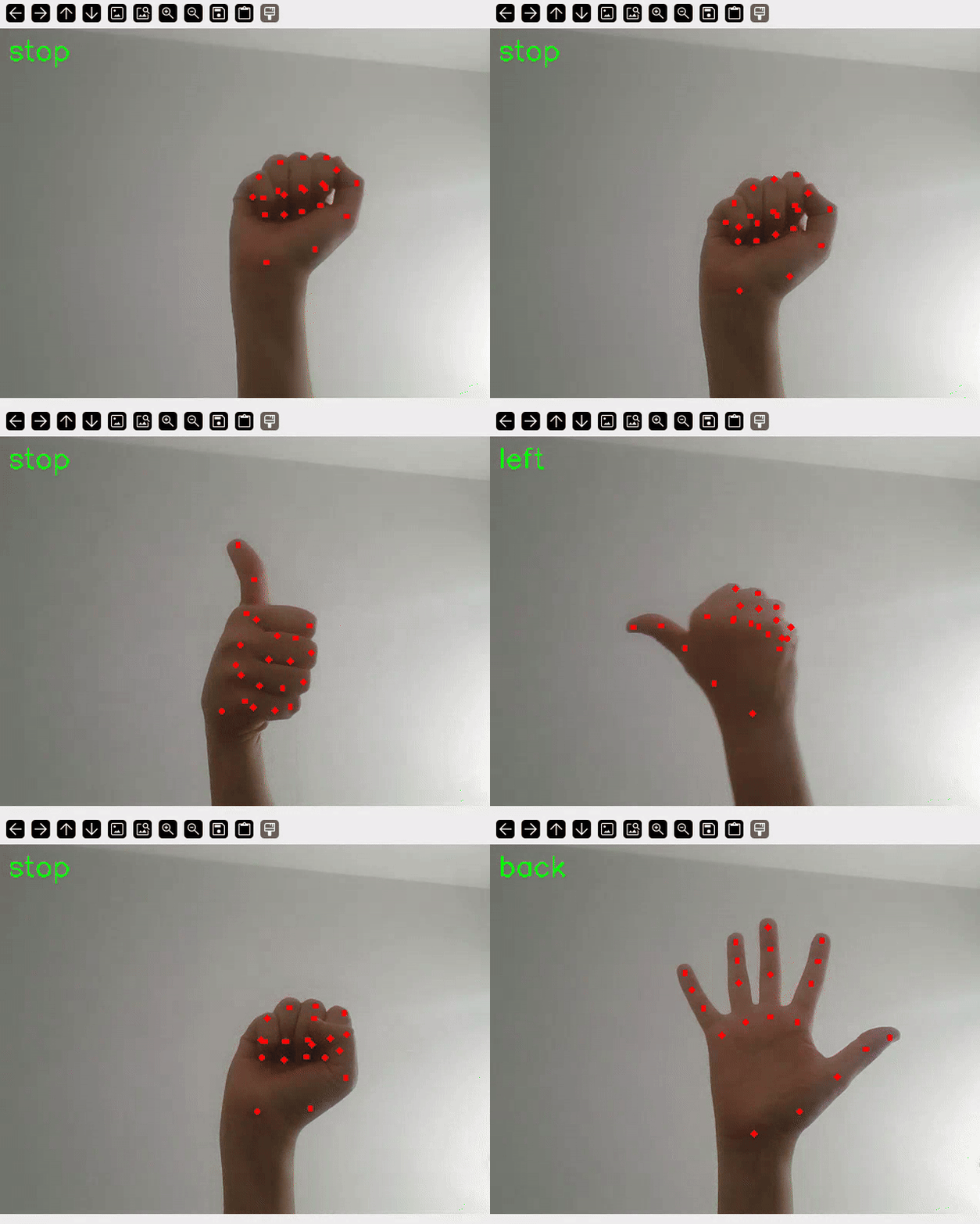
Task 5.1
Confirm that an unrecognised pose (for example a fist, or a peace
sign) falls through to stop. This is the safety default
from Step 2.
Expected result: The corner label correctly reads
forward, back, left,
right, or stop for each gesture.
Step 6 - Map gestures to motion
Finally, fill in gesture_to_twist so each label becomes
a velocity. Forward and back set the linear velocity; left and right set
the angular velocity; stop leaves the Twist at all
zeros:
    if gesture == "forward":
        twist.linear.x = FORWARD_SPEED
    elif gesture == "back":
        twist.linear.x = -FORWARD_SPEED
    elif gesture == "left":
        twist.angular.z = TURN_SPEED
    elif gesture == "right":
        twist.angular.z = -TURN_SPEED
    # "stop": leave the Twist at zero
Build, source and run the node again, then watch the commands in another terminal:
ros2 topic echo /cmd_velTask 6.1
Make each gesture and confirm the Twist values change
accordingly (positive linear.x for forward, negative for
back, non-zero angular.z for the turns, all zeros for
stop).
Expected result: /cmd_vel carries the
velocity that matches the gesture you are showing, and returns to zero
when you show no clear gesture.
Step 7 - Drive the simulator by gesture
With the simulator from Step 1 still running, run your node and steer the robot. Hold the index finger up to drive forward, open your hand to reverse, and use your thumb to turn. Lower your hand to stop.
Tip: Keep
FORWARD_SPEEDandTURN_SPEEDsmall at first. You can raise them once you trust your gestures.
Task 7.1
Drive the simulated FOSSBot on a short course (for example forward, a turn, and back to where you started) using only gestures.
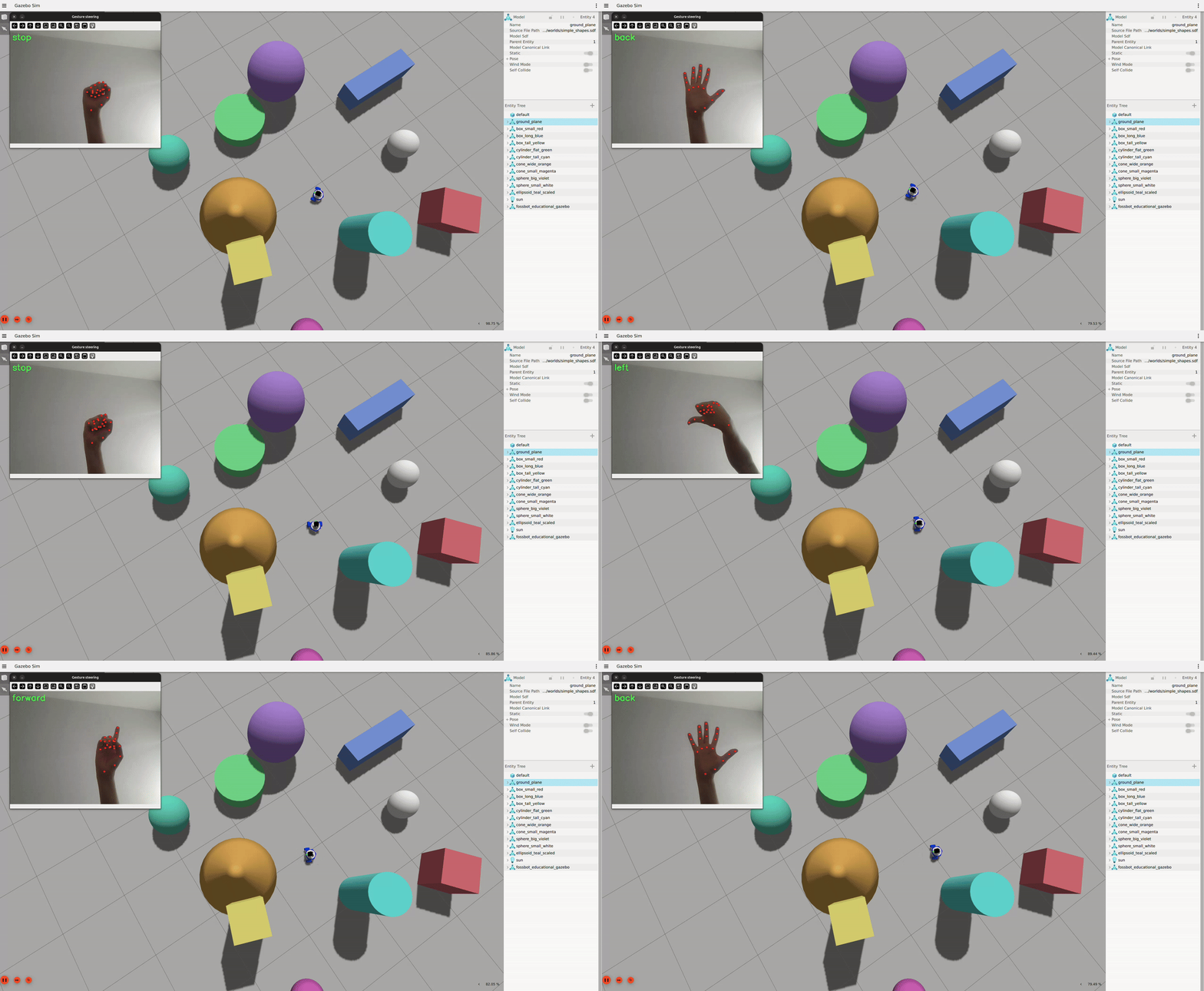
Expected result: The simulated robot moves under gesture control and stops when you show no clear gesture.
Step 8 - Drive a real FOSSBot
Nothing about your node changes for a real robot; only the listener
on /cmd_vel does.
Connect to the robot by following Connecting to real robot, then come back here. Do not launch the simulator.
Run your node the same way as in Step 7. Your gestures now drive the physical robot.
Warning: Clear the space around the robot first, keep the speeds low, and remember the safe stop is simply to lower or remove your hand.
Task 8.1
Drive the real FOSSBot a short distance with gestures, then stop it by removing your hand.
Expected result: The real FOSSBot responds to your gestures and stops safely on no gesture.
9. Analysis Questions
Your node stops the robot whenever it does not recognise a clear gesture. Why is this safer than, for example, continuing the last command until a new one arrives?
The node publishes a command roughly ten times per second even when the gesture does not change. Why is that necessary, given how the robot’s controller behaved in Lab 06?
Describe one situation in which
classify_gesturewould misread your hand (think about lighting, the angle of your hand, or the left/right mirror). How would you make the rule more robust?You ran the exact same node against the simulator and the real robot. What practical differences did you notice (for example latency, lighting, or how the robot reacted), and what might explain them?
10. Submission Requirements
The completed source of the
fossbot_gesture_controlpackage (yourclassify_gestureandgesture_to_twist).The gesture demonstration recordings: the preview window with landmarks, one per gesture (
forward,back,left,right,stop), and the robot moving under gesture control in simulation.
11. References and Open Licence
- MediaPipe hand landmark detection: https://ai.google.dev/edge/mediapipe/solutions/vision/hand_landmarker
- OpenCV video capture: https://docs.opencv.org/4.x/dd/d43/tutorial_py_video_display.html
- ROS 2 Jazzy documentation: https://docs.ros.org/en/jazzy/
geometry_msgs/msg/Twist: https://docs.ros.org/en/jazzy/p/geometry_msgs/msg/Twist.html- FOSSBotEduSim repository: https://github.com/LRMPUT/FOSSBotEduSim
The Creative Commons Attribution 4.0 International (CC BY 4.0) license allows users to share, copy, distribute, and adapt the work, even for commercial purposes, as long as proper credit is given to the original creator.
EU funding disclaimer
Funded by the European Union. Views and opinions expressed are however those of the author(s) only and do not necessarily reflect those of the European Union or the European Education and Culture Executive Agency (EACEA). Neither the European Union nor EACEA can be held responsible for them.